A visual guide for clients using BlogGen to request a content review, set up their account, approve blog content and keep their website active with useful articles.
BlogGen handles the technical workflow. You only need to give us clear business information, review what matters, and approve content when it is ready.
1 Complete your business profile.
2 Tell us how your blogs should sound.
3 Review blog ideas for the month.
4 Approve draft blogs or request changes.
5 Connect your website so approved blogs can be sent safely.
6 Check published blogs and reports.
Client walkthrough
Client steps at a glance
Use this guide to understand the main screens and actions.
1
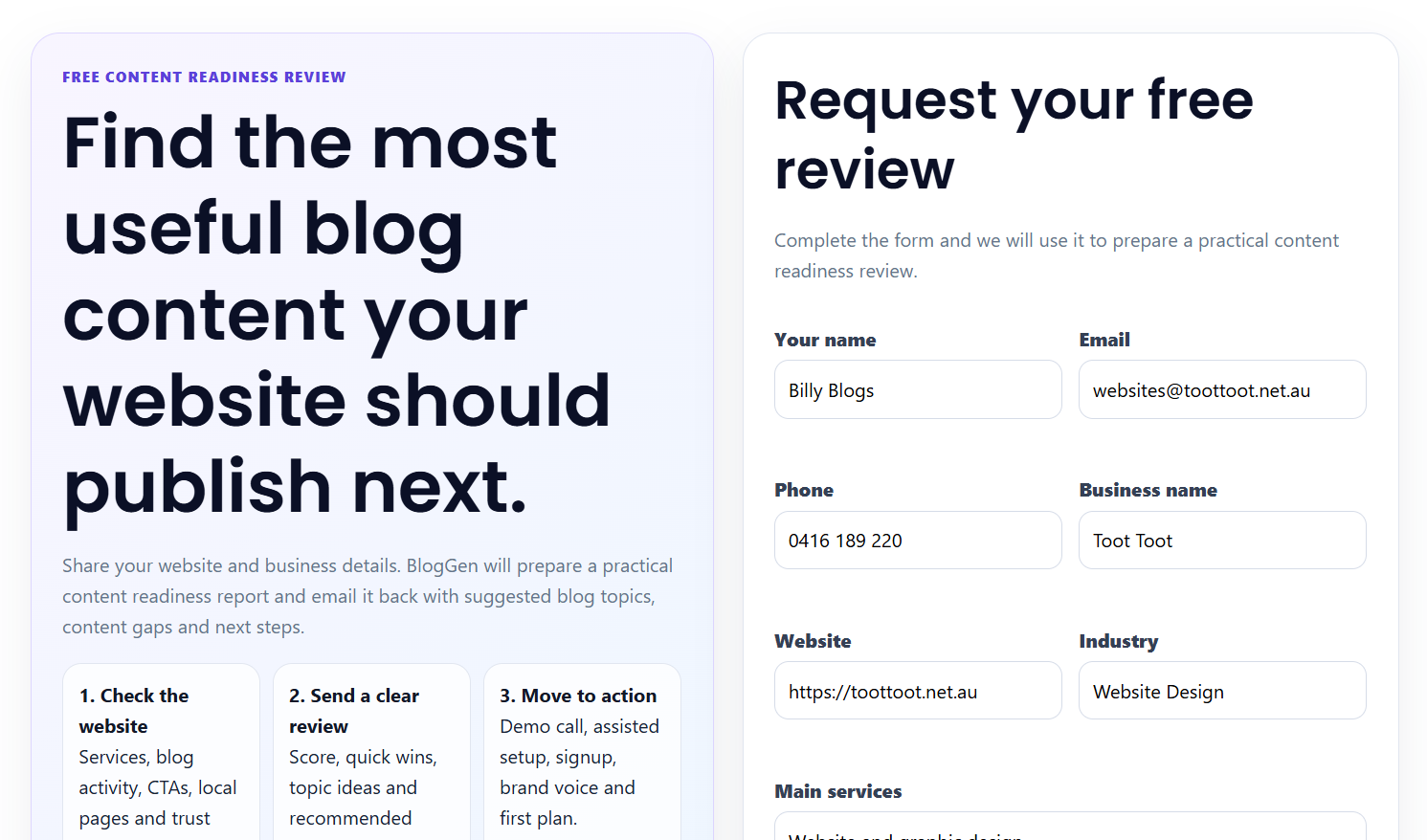
Request a Free Content Review
Use the review form to tell BlogGen about your website, services, locations and content goals.
What happens next
BlogGen stores the request, emails the site owner, prepares a content readiness report and sends the client a link to sign up.
Screenshot to upload: the Payments page or Reports tab showing invoices/payment history/report summary.
Website connection
Connect your WordPress website with the BlogGen Connector
The connector is a small WordPress plugin installed on your own website. It lets BlogGen check the connection and publish approved content without asking for your normal WordPress password. It can also store Facebook and Instagram publishing credentials on your own website, so Meta tokens do not need to be stored in the Hub.
Download and install BlogGen Connector v1.1.23
Follow these steps on the website where your blogs will be published.
Download the BlogGen Connector ZIP using the button below.
Log in to your own WordPress website as an administrator.
Go to Plugins → Add New Plugin → Upload Plugin, upload the ZIP, click Install Now, then Activate.
Open Tools → BlogGen Connector on your WordPress website.
Copy the connection code shown on that screen. Keep it private. If you want social publishing, also complete the Facebook Page and/or Instagram Business settings on this Connector screen.
Return to BlogGen and paste the website URL and connection code into the website connection screen, then run the connection test.
Token safety Do not send your normal WordPress password. The connection code is used only for the BlogGen connection workflow and can be regenerated from the connector screen if needed. Meta access tokens for Facebook and Instagram stay inside the Connector on your own website.
Where to find the token After activating the connector on your website, open Tools → BlogGen Connector. The token and connection check information are shown there.
Connection checklist
✓ Website connection plugin installed and activated on the publishing website.
✓ Tools → BlogGen Connector opens successfully.
✓ Remote publishing is enabled if BlogGen will publish approved posts for you; social publishing is configured in Tools → BlogGen Connector if Facebook or Instagram posting is required.
✓ connection code has been pasted into BlogGen.
✓ The connection check opens at /wp-json/bloggen-connector/v1/health.
✓ BlogGen connection checks have passed before the first post is published.
If you cannot see Tools → BlogGen Connector: check that the connector plugin is activated on the client website, not just installed.
If the connection check fails: check that WordPress permalinks are saved, the REST API is not blocked, and security plugins allow the BlogGen Connector endpoints.
If publishing fails: keep the connection in draft/testing mode and ask BlogGen support to run website connection checks before approving live publishing.
Before approving a blog, check these items
Before content goes live, the business should check the details that only they can confirm.
✓ Services, locations and prices are accurate.
✓ The article sounds like the business.
✓ Claims, guarantees, health, finance or legal statements are not too strong.
✓ The call-to-action is correct.
✓ Images are owned, approved or properly licensed.
✓ The blog should be published now or scheduled for later.
Want setup help?
Assisted Setup can help configure the practical pieces before the first monthly cycle begins.